If you forget to clock in or out, or need to add hours after the fact, you can add time entries or durations to your own Timesheet from My Portal. Adding missing time before your timesheet is approved helps make sure your pay is accurate. Your manager or administrator still reviews and approves the time.
This article is for employees who use the WorkEasy Software web app.
Before you begin
Your company must allow you to add time to your timesheet. See If you don't see Add Time.
The Pay period must be open for editing. You can add time up to 60 days in the past.
A job and work Location must be assigned to you. If Job Costing is set up to require a job, you need to select the final required job level before you can add time.
Add time to your timesheet
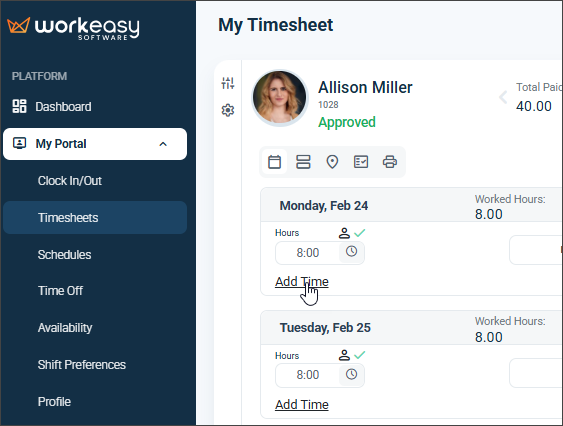
In the left menu, select My portal → Timesheet. The My Timesheet page opens to your current pay period.
To add time to a different pay period, select it from the Pay Period list.
Under the day you want to update, click Add Time. You can also click the actions button (⋮) at the bottom right of the page, then click Add Time. The Add dialog opens.
Under Entry Type, select one of the following:
Time Entry: Add a Punch with a specific time, such as a clock in or clock out. This is the default.
Duration (Hrs): Add a number of hours without punch times.
If your company uses Job Costing, select the job from the Select Job list.
For a time entry, complete the following:
Calendar: Select the date of the punch.
Time: Enter the time of the punch.
Location: Select where you worked.
Punch Type: Select Automatic, In, Out, Start Break, End Break, or In (Start Shift).
Time Code: Select how the time is paid, such as Worked Hours or Overtime.
Comments: Optionally, explain why you are adding the time.
To add another punch for the same day, such as the matching clock out, click Add Entry.
For a duration, select the date, then complete Hours, Time code, Location, and optionally Comments.
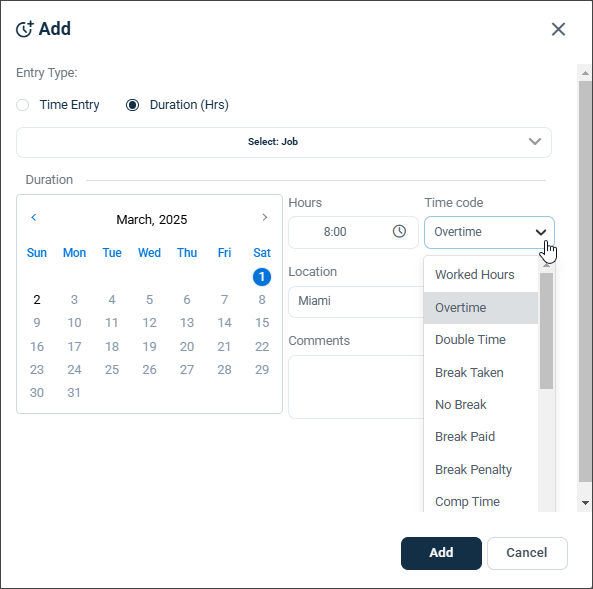
Click Add.
Click the actions button (⋮), then click Save. Time you add is not saved until you click Save.
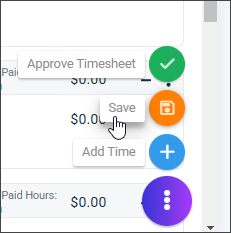
When your timesheet is complete, click the actions button (⋮), then click Approve Timesheet to submit it for approval.
Result: The time appears on your timesheet. After you approve your timesheet, your manager or administrator reviews it. Once it is approved, the hours are included in payroll for the pay period. Depending on your company's settings, you or your supervisor may receive notifications about the approval status.
If you don't see Add Time
If your timesheet has no Add Time links and the actions menu shows only Save, you can't add time to this timesheet. This can happen when your company does not allow employees to add their own time, or when the pay period is closed or more than 60 days in the past. Contact your manager or administrator to add the time for you or to update your access.
Need Help?
If you have questions or experience issues, contact WorkEasy Support at (888) 783‑1493, email support@workeasysoftware.com, or submit a support ticket.