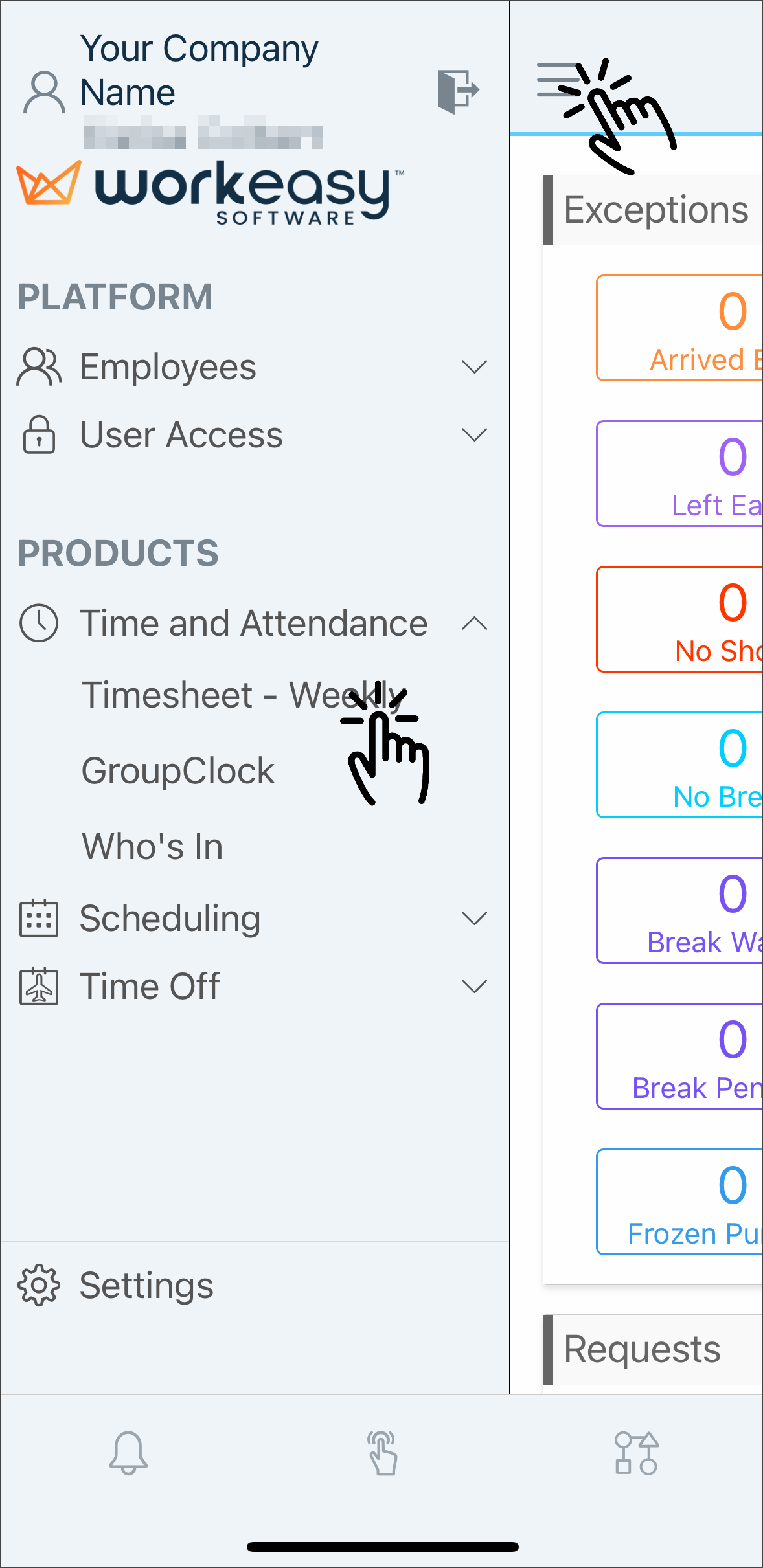
Tap the menu.
Time the product Time and Attendance dropdown.
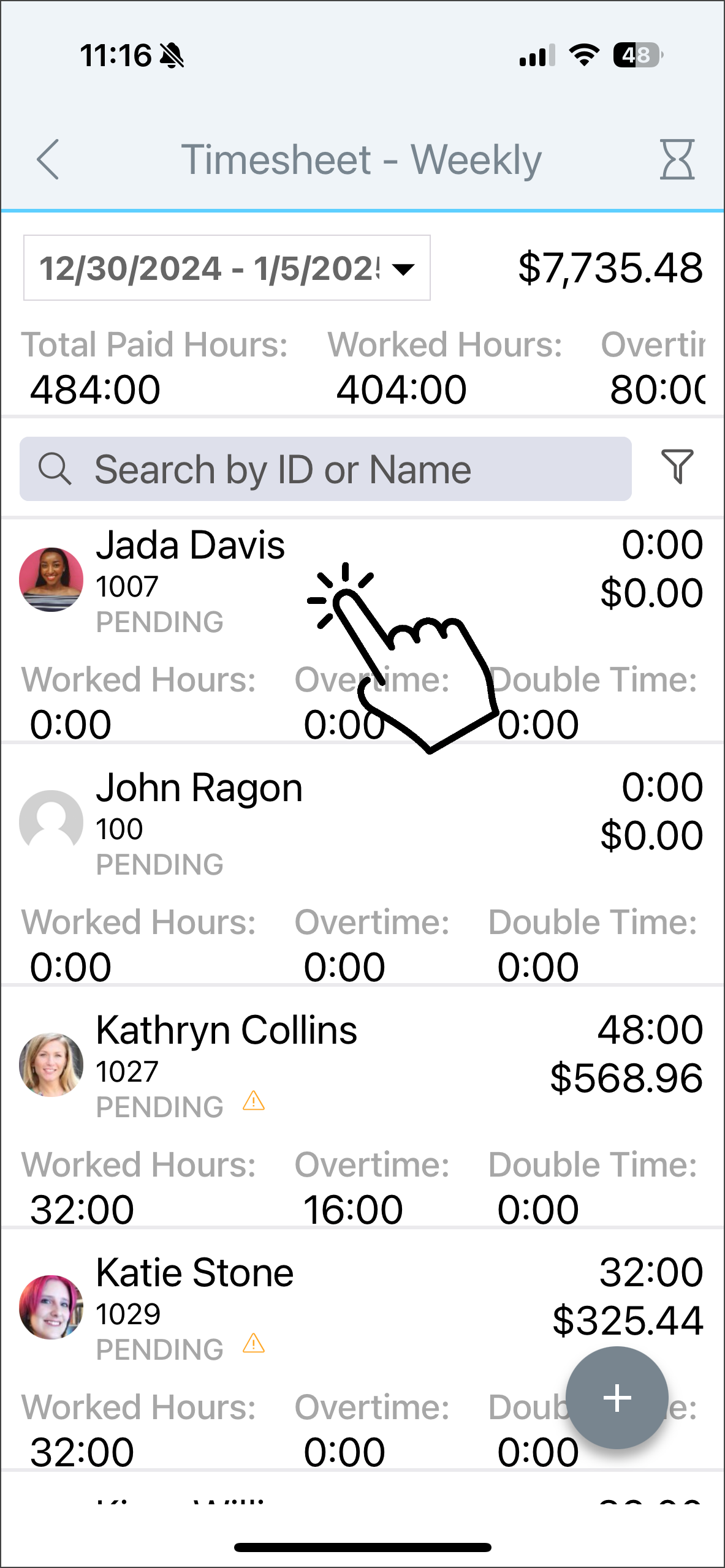
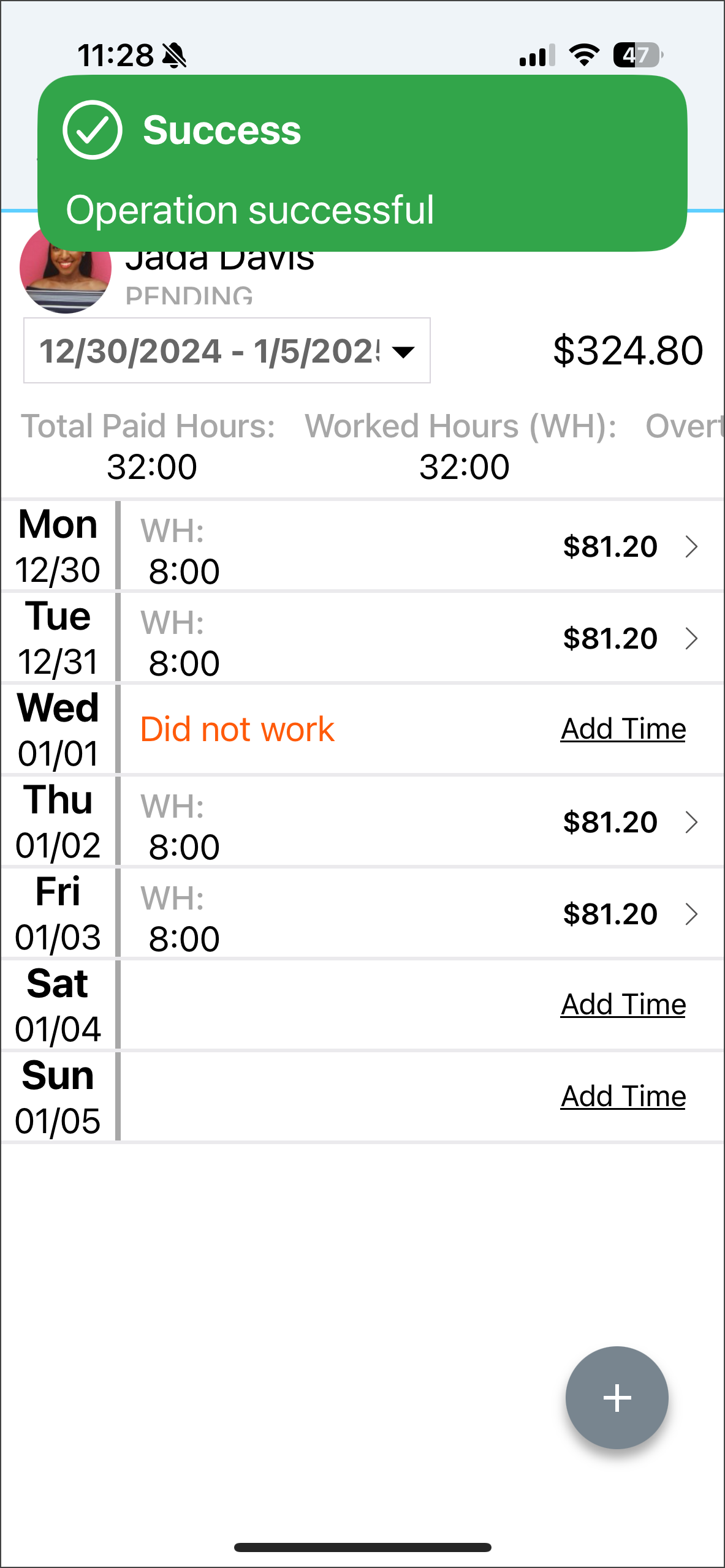
Tap the applicable timesheet.
Select the applicable employee.
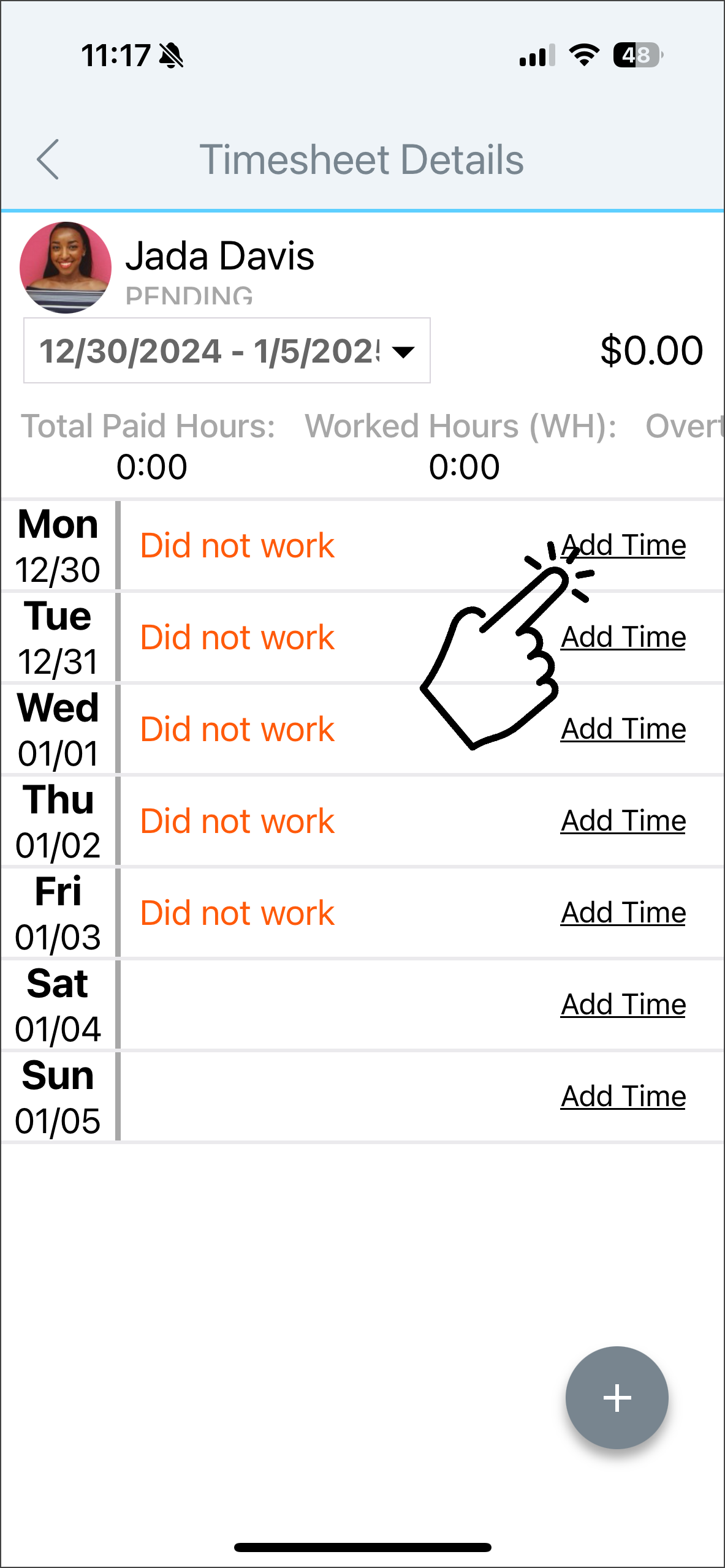
Select the applicable pay period.
Click Add Time.
To punch a time entry, tap Type > Time Entry.
Select From and To dates, a Time, a Punch Type, a Time code, a Location, and enter Notes if necessary.
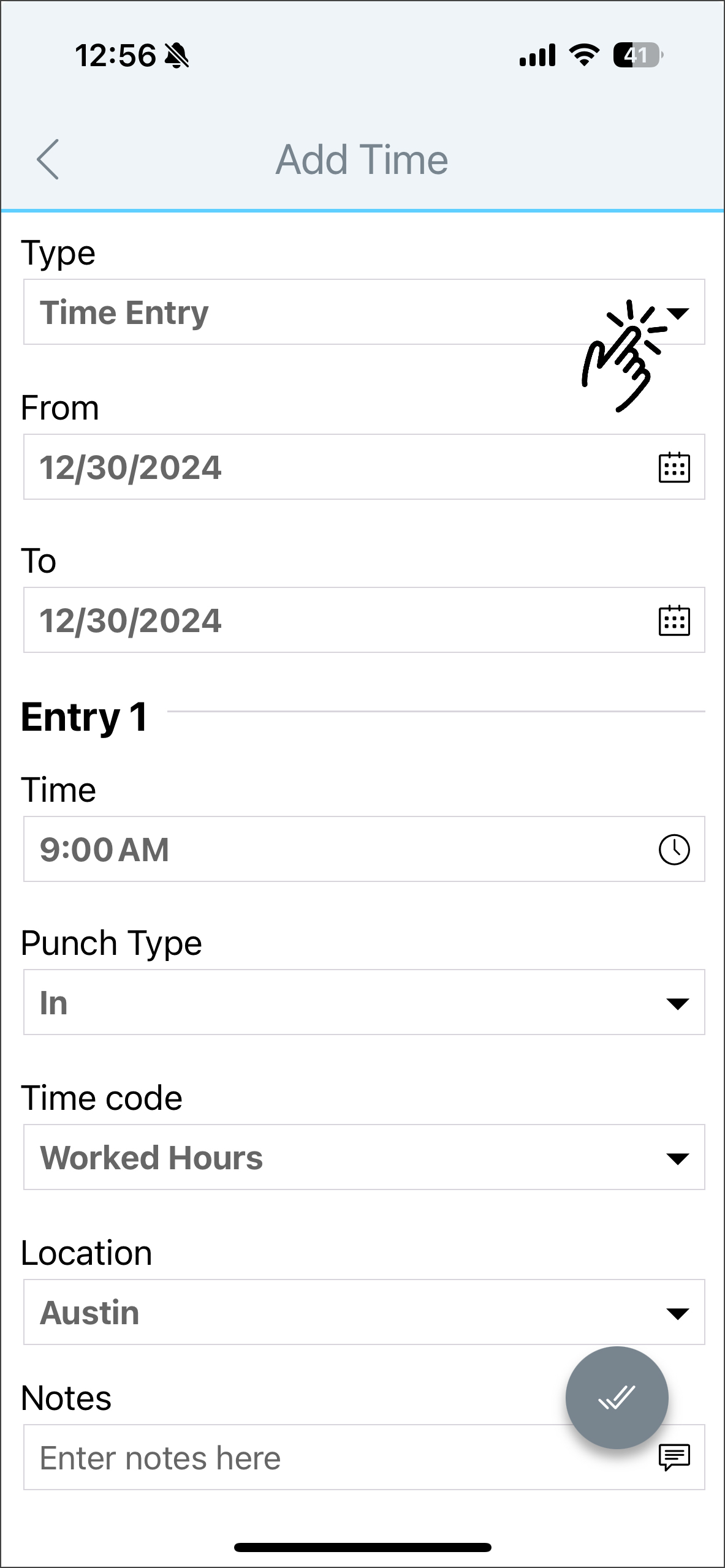
The applicable Punch Types here are In, Out, Start Break, End Break, and In (Start Shift).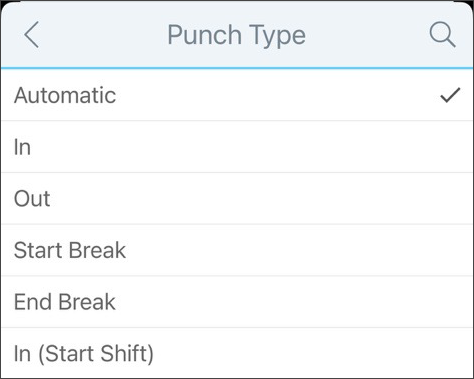
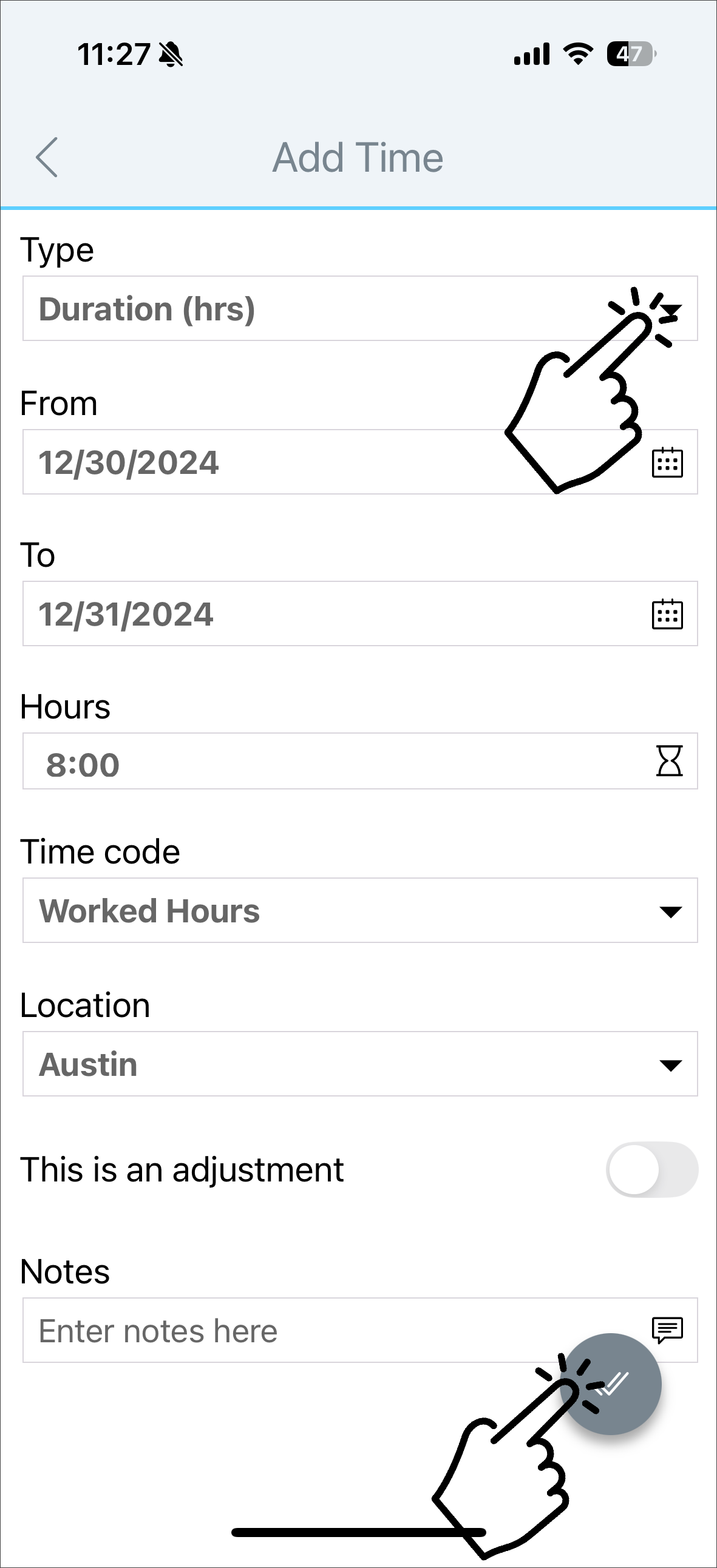
To punch the duration of the shift in hours, tap Type > Duration.
Select the From and To dates, enter the Hours, select a Time code, Location, enter Notes if necessary, and tap the checkmark button. If it's an adjustment, toggle on the button This is an adjustment.
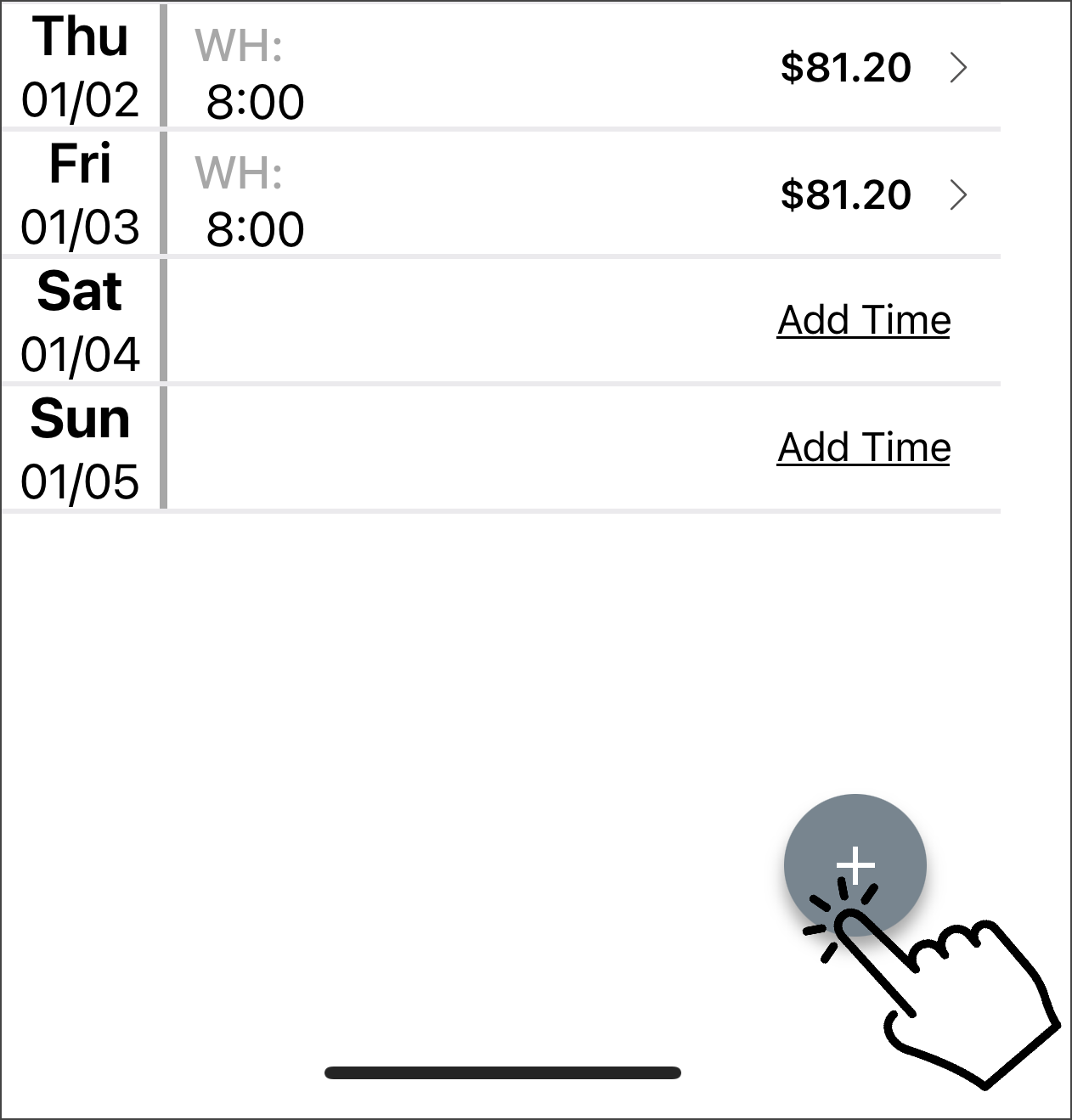
Once you've added the missing punches, click the + sign.
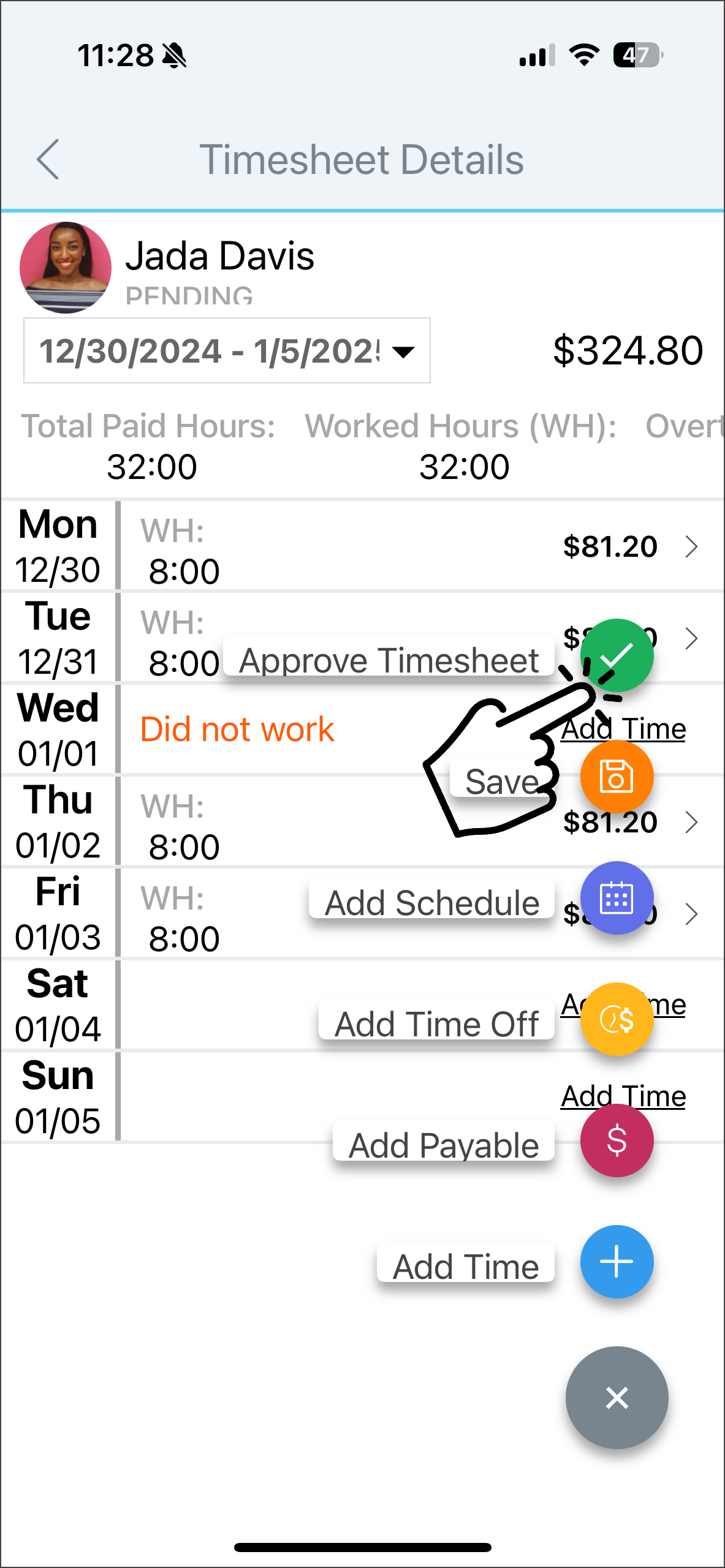
Tap Approve Timesheet.
You're done! 😊👍
To allow employees to add time and approve their own timesheets
Go to Global Settings > Time Tracking > Reporting Hours. Select Company, Group, or Employee. Select Manual Clock In/Out and Manual Timesheet Hours under Employee Reporting Method to allow employees to manually add time and approve their own timesheets.