This guide is for managers and administrators responsible for submitting time-off requests on behalf of employees. It provides step-by-step instructions for creating a time-off request for an employee using two available methods: the Timesheet option in the Time and Attendance product and the Time Off Requests option in the Time Off product. Use these workflows to submit, view, and track employee time-off accurately and consistently across your team.
Time and Attendance > Timesheet option
Under Products, select Time and Attendance and the applicable Timesheet.
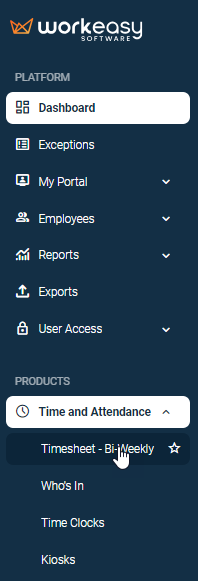
Select the applicable employee.
Select a Pay Period.
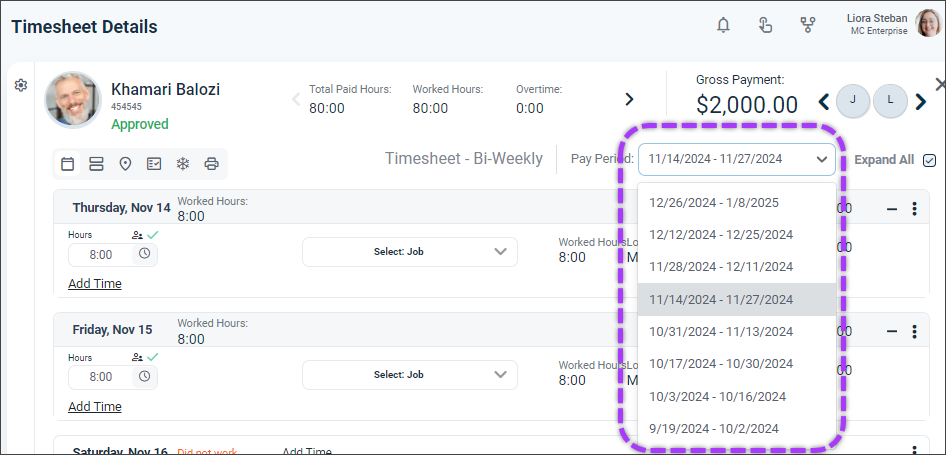
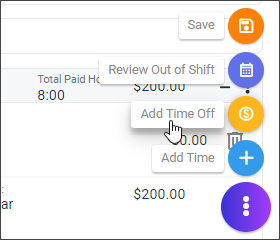
Click the ellipsis > Add Time Off.
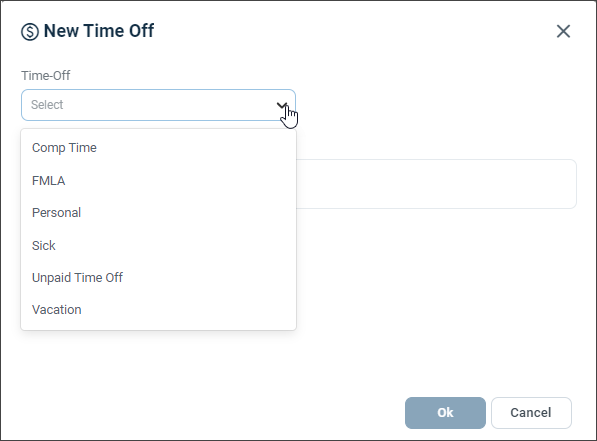
Make the applicable Time-Off selection.
Select the applicable Duration.
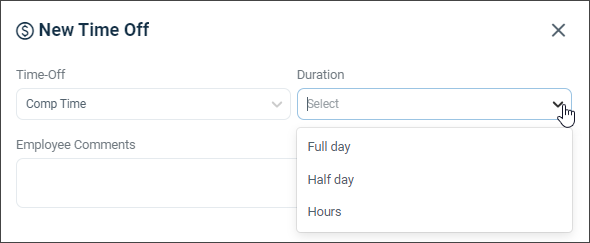
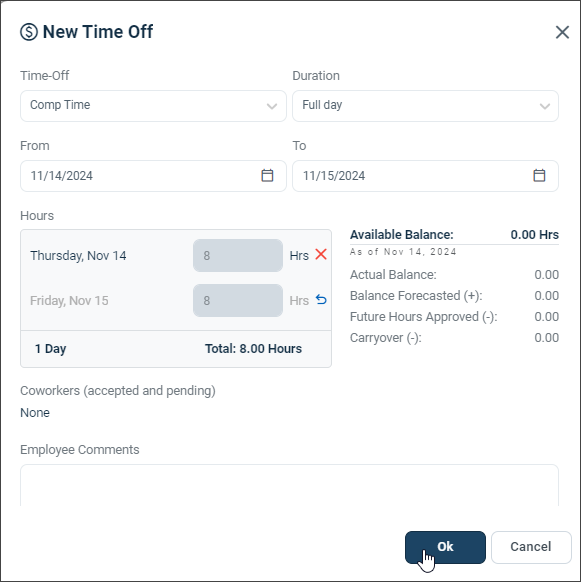
Select the From and To dates. (Employee Comments are optional.)
Click Ok.
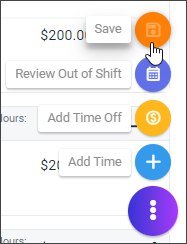
Click Save.
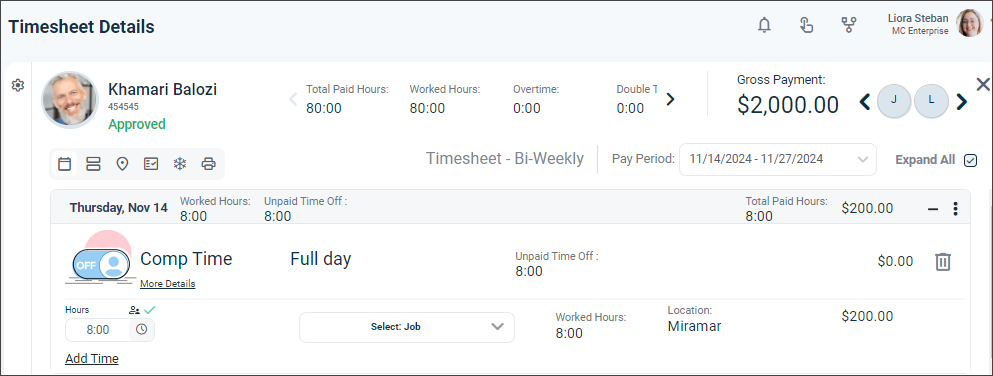
The time-off request will be displayed on the employee's timesheet.
Time Off > Requests option
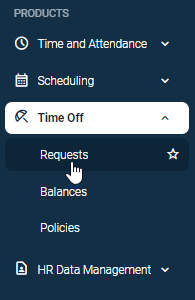
Under Products, select Time Off > Requests.
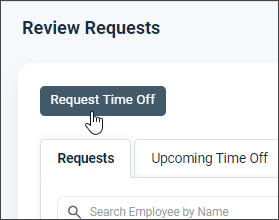
Click Request Time Off.
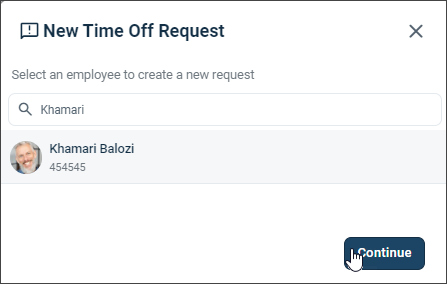
Select an employee from the list, or search for an employee by ID or name, and click Continue.
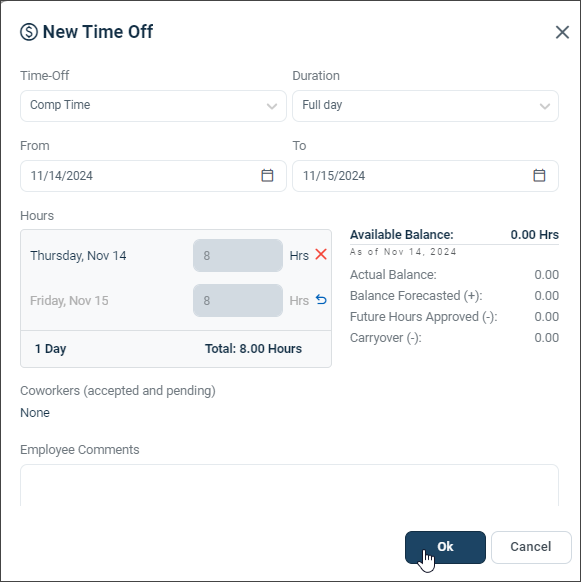
Make your selections, enter a comment (optional), and click Submit Request.
You're all set! 😊👍
If you have questions, please call us at (888) 783-1493, email support@workeasysoftware.com, or submit a ticket