The integration of WorkEasy and Hotel Effectiveness automates data exports for tracking labor costs. Secure file transfers via SFTP are necessary for WorkEasy to send employee and time clock data to Hotel Effectiveness. Following these steps ensures precise and automated labor data tracking.
Before you begin
To complete the setup, the following are required:
SFTP Credentials: Provided by the client's Hotel Effectiveness account manager.
Employee and Punch Data: Available through WorkEasy’s reporting tools.
Access to WorkEasy Global Settings: Required for configuring delivery methods.
Configuring SFTP in WorkEasy
Obtain SFTP Credentials.
Contact your Hotel Effectiveness account manager to receive your unique SFTP credentials, including:
Hostname
Username
Password
Port
File path
Set Up the Delivery Method in WorkEasy.
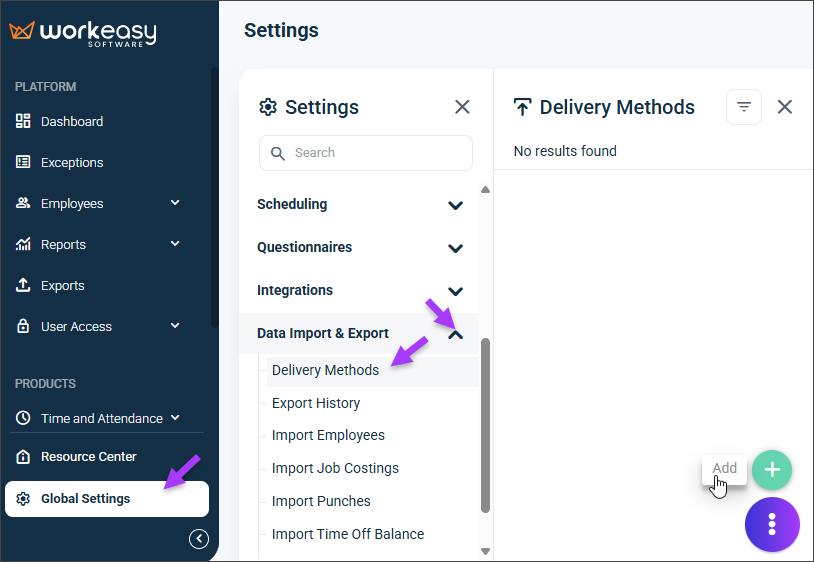
Navigate to Global Settings > Data Import & Export > Delivery Methods.
Click Add.
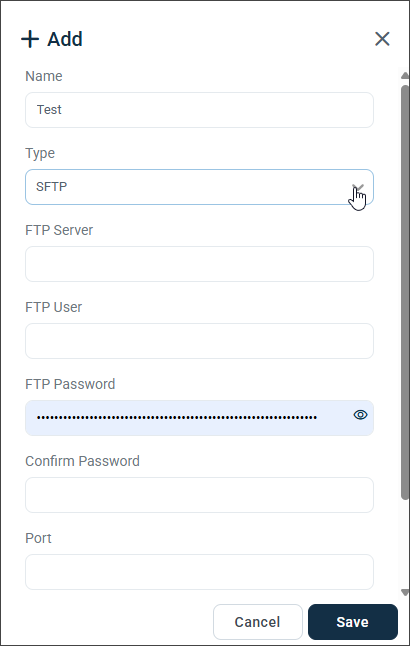
Enter a Name for your delivery method.
Choose SFTP as the delivery method Type.
Enter the provided credentials in the FTP Server, FTP User, FTP Password, Confirm Password, Port, and Destination Path fields.
Save the configuration.
Scheduling Data Exports
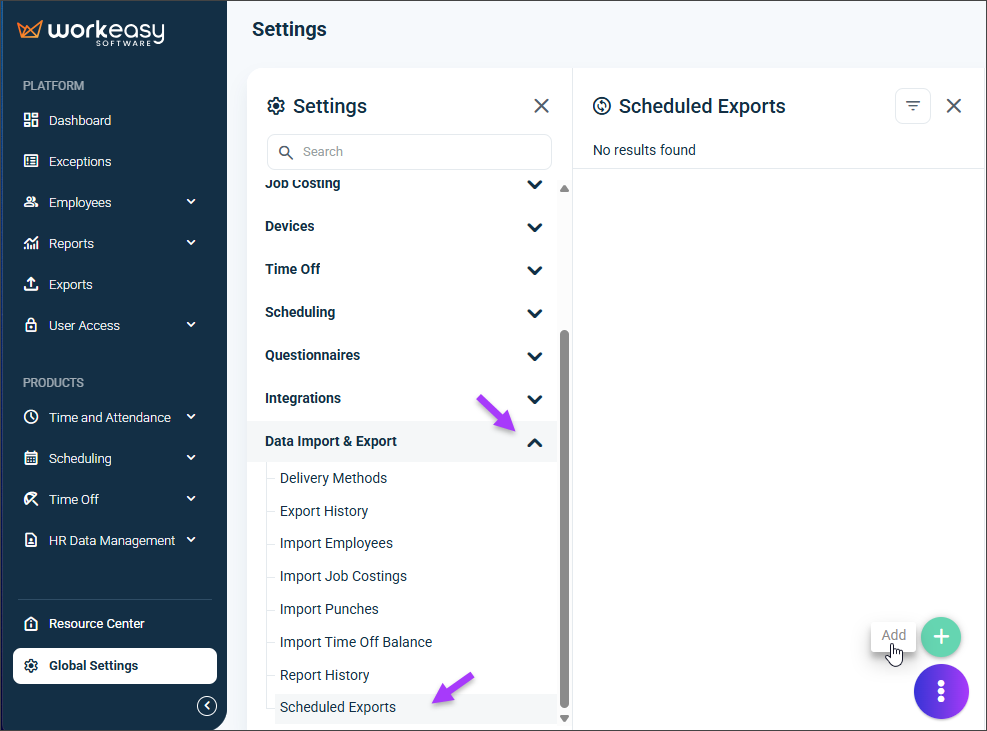
Navigate to Global Settings > Data Import & Export > Scheduled Exports.
Click Add.
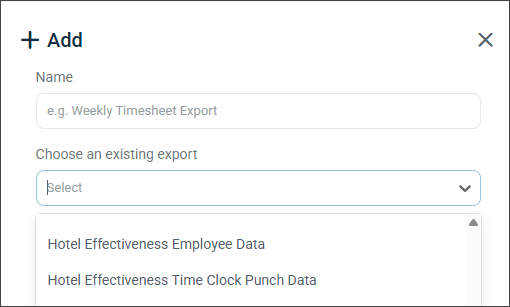
Configure the export details.
Enter a Name for your export.
Choose an existing export based on requirements: Hotel Effectiveness Employee Data or Hotel Effectiveness Time Clock Punch Data.
Specify the Delivery Method (the SFTP method configured earlier).
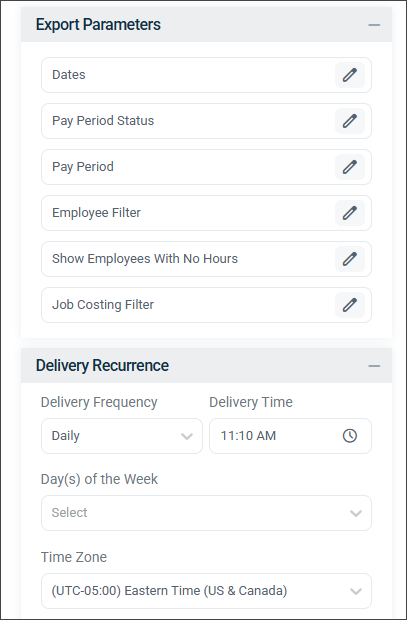
Specify the Export Parameters.
Define the Delivery Recurrence (export frequency).
Save and Enable the Export.
Verify all details and click Save.
Ensure the export is enabled and functioning correctly.
File Transfer Methods
Preferred Methods: FTPS or SFTP (for encryption and security)
Alternative Method: Email attachments to edi@hoteleffectiveness.com
File Specifications
Acceptable file types: CSV, TXT, XLS, XLSX
Files must be comma delimited, tab delimited, or have a fixed width.
Extra fields are allowed but will be ignored during import.
Column structure must remain constant to ensure correct mapping.
Time Clock Punch Data
Filename: Punch.csv (or .txt/.xls as applicable)
Contains hours worked, wages, employee IDs, earning codes, and positions
Sent up to four times per day (e.g., 8:00 A.M., 12:00 P.M., 4:00 P.M., 8:00 P.M. ET)
Employee List
Filename: Employee.csv
Contains employee ID, name, home position, hire date, and pay type
Sent at least once daily (preferably in the evening)
Verification and Testing
Once the configuration is complete, send a test file to Hotel Effectiveness for verification.
Confirm with the Hotel Effectiveness team that the data is received and formatted correctly.
Adjust settings in WorkEasy as needed.
Support
For issues related to data exports or configuration:
Contact WorkEasy Support.
Reach out to the client's Hotel Effectiveness account manager.
FAQ
What is the purpose of integrating WorkEasy with Hotel Effectiveness?
The integration allows for automated data exports, ensuring accurate labor cost tracking.
What are the Before you begin for setting up the integration?
You need SFTP credentials, employee and punch data from WorkEasy, and access to WorkEasy Global Settings.
How do I obtain SFTP credentials?
Contact your Hotel Effectiveness account manager to receive your unique SFTP credentials.
What file formats are acceptable for data transfers?
Acceptable file types include CSV, TXT, XLS, and XLSX.
How often should Time Clock Punch Data be transferred?
It is recommended to transfer Time Clock Punch Data up to four times per day.
Is it necessary to verify the data after configuration?
Yes, you should send a test file to Hotel Effectiveness for verification.