This guide shows managers and administrators how to add new employees in WorkEasy Software. You’ll learn how to open the employee list, enter required details, and save or continue adding new employees.
Video Tutorial
Step-by-Step Instructions
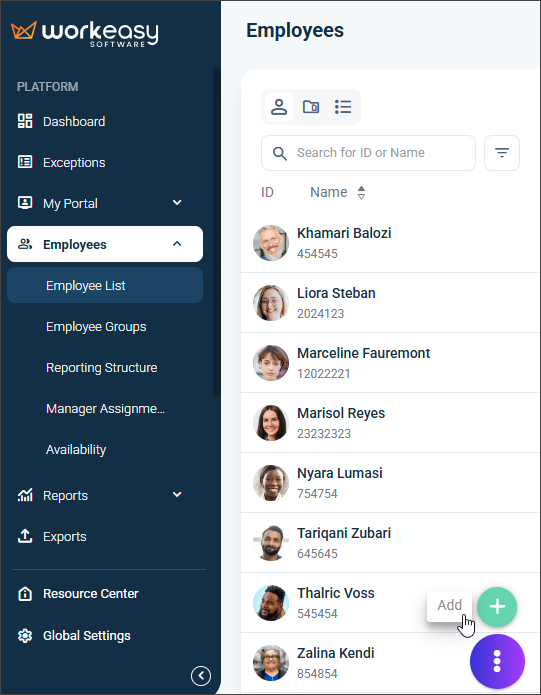
In the Left Nav, click Dashboard > Employees > Employee List.
Click the ellipsis button and click Add.
Enter the employee details. You can toggle the button Show Only Required Fields to only fill out the mandatory fields.
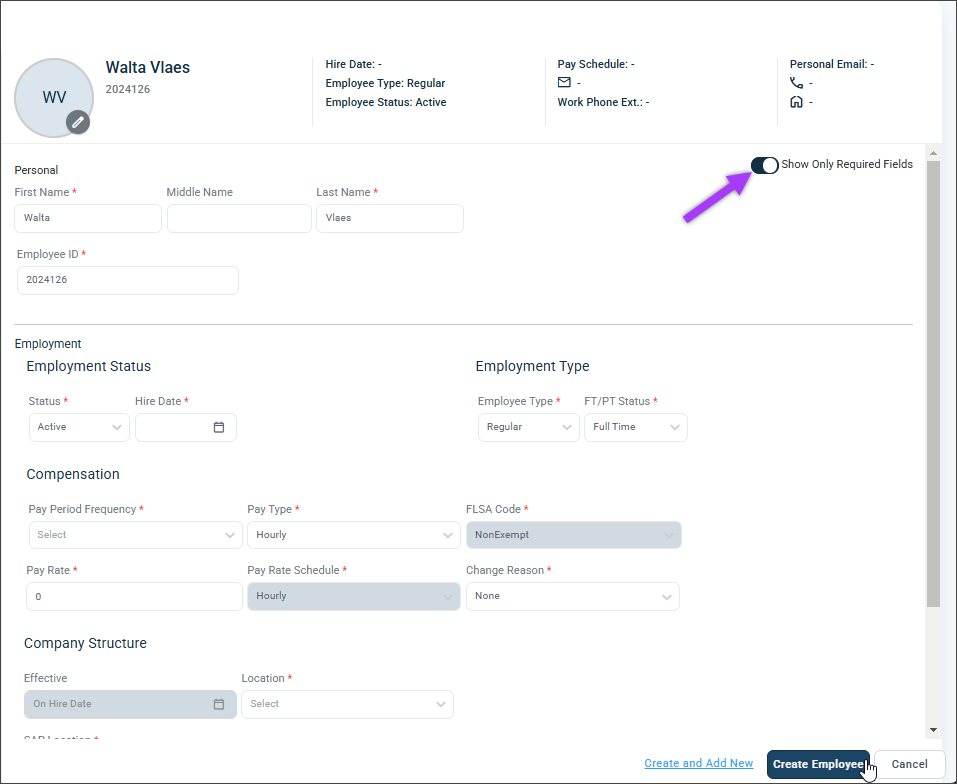
If you need to add more employees, click Create and Add New.

Important❗
If the message Missing configuration for the pay period frequency selected appears, the pay period has not been selected or configured. To address this, see Configure or Change a Pay Period.
To configure an employee’s profile, see Customize Employee Profiles Using Profile Designer.
To change an employee’s pay rate or salary, see Update an Employee's Pay Rate or Salary.
You're all set! 🙂
If you have questions, please call us at (888) 783-1493, email support@workeasysoftware.com, or submit a ticket.