This guide provides instructions on how to add a system user, such as payroll specialists and administrators, who can access settings and information without participating in employee activities like clocking in and out. By following these steps, you can efficiently manage system users and ensure they have the appropriate access levels.
System Users represent email-based access to the software and are not tied to employee records. Adding a System User grants access to administrative settings and system information only. This process does not create an employee, enable employee portal access, or allow clocking in or out.
An email added here may later be linked to an employee to create an Employee Portal User. Understanding this distinction helps prevent duplicate users and access conflicts.
System Users and Employee Portal Users
System User | Employee Portal User | |
|---|---|---|
Who it is for | Administrators, payroll specialists, and others who manage settings and information | Employees who use the employee portal |
Linked to an employee record | No | Yes, the employee must exist in Employees > Employee List |
Can clock in and out | No | Yes, based on clocking settings |
Where to manage it | User Access > System Users | User Access > Employee Portal Users |
To give an employee portal access, see Grant Employees Access to WorkEasy Web App.
Choose how to add the user
Option | Use it when |
|---|---|
Add User | The email address is not yet registered with WorkEasy Software. |
Import User | The email address is already registered to another WorkEasy Software account. |
Add a new System User
On the left nav, click User Access > System Users.
Click the ellipsis > Add User.
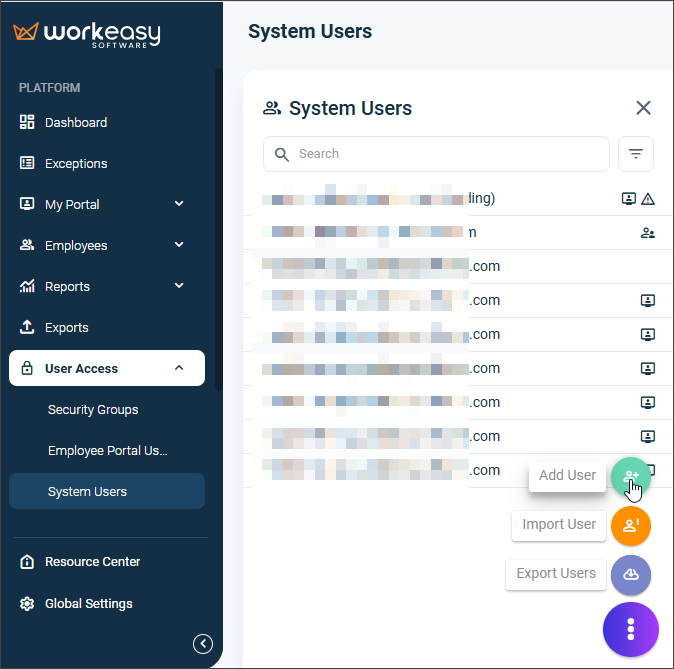
Fill out/select the required fields and click Save.
IMPORTANT❗ Selecting the Super Admin checkbox provides the user full access to the software.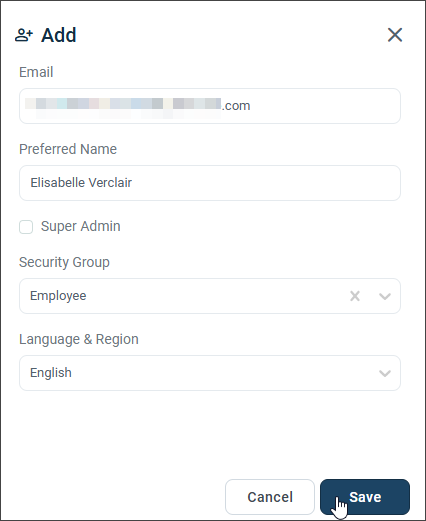
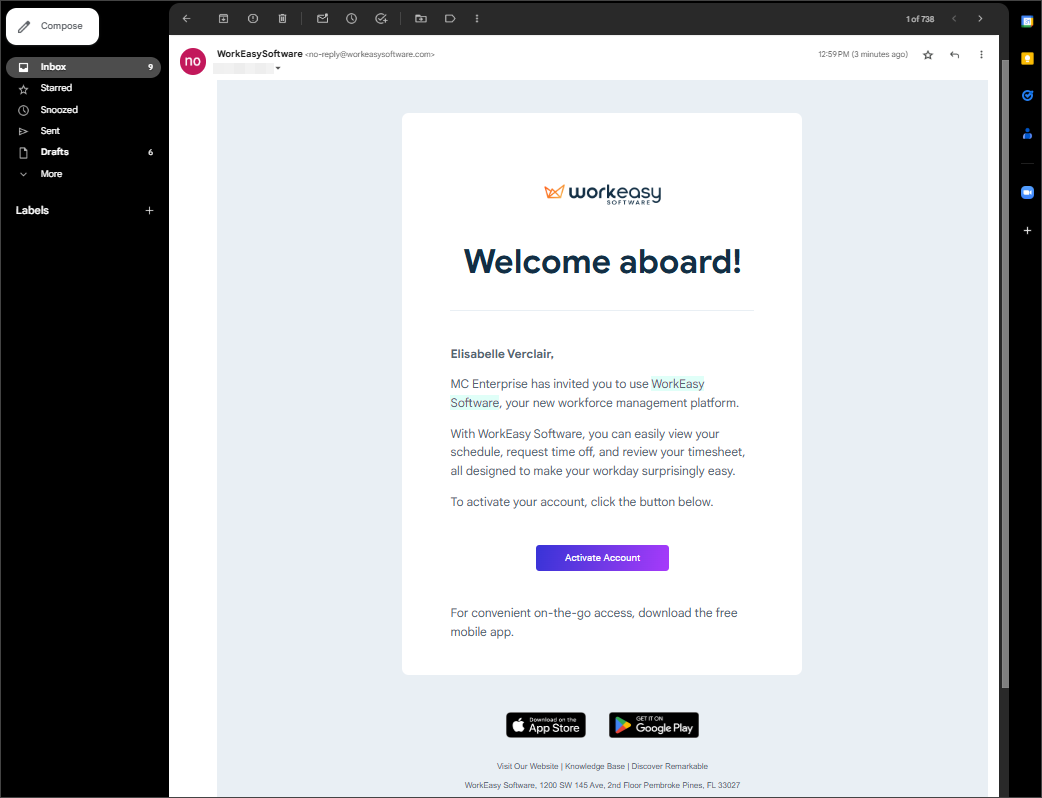
The user automatically receives an email with login instructions.
Import an existing user
On the left navigation, click User Access > System Users.
Click the ellipsis, then select Import User.
Enter the user's Email. Make sure the email is spelled correctly.
Enter the Preferred Name.
(Optional) Select Super Admin to give the user full access to the software.
Select a Security Group.
Click Save.
You're all set! 😊👍
We're here to help you! If you have questions, please call us at (888) 783-1493, email support@workeasysoftware.com, or submit a ticket.